
Google Sheets WhatsApp integration for groups and chats
Send new WhatsApp chats, messages, reactions and ticket updates to Google Sheets as they happen, for reporting without manual data entry.
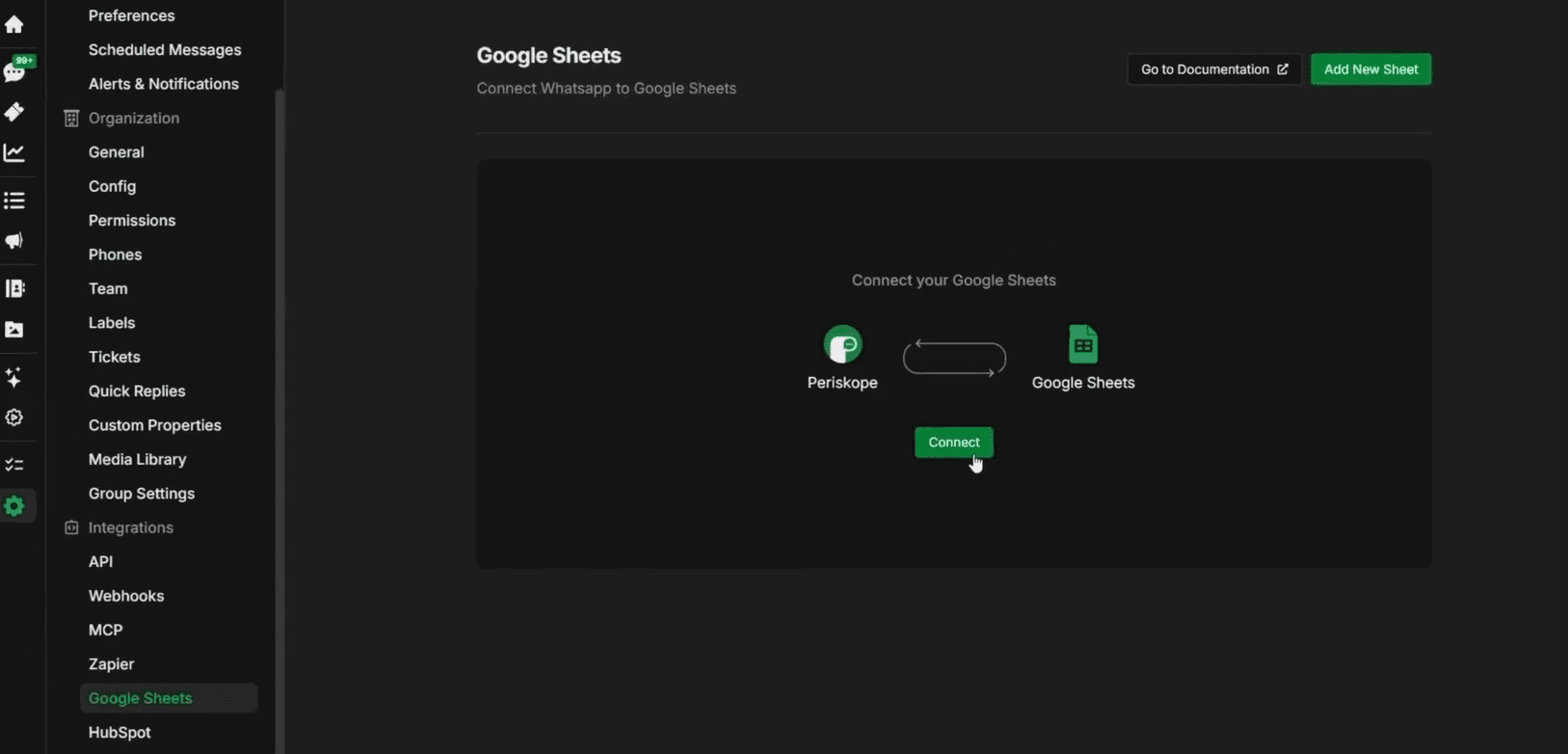
Periskope’s Google Sheets integration sends WhatsApp events, such as new chats, messages, reactions and ticket updates, to a Google Sheet as they happen. You authorize Google, paste a sheet URL and choose the events to track. You can connect several sheets and check each one’s sync status from one screen.
What you can do
Log new chats: record every new chat or group with the chat.created event.
Log messages: capture incoming text and media, plus edits, deletions and delivery status, with the message events.
Track tickets: log ticket.created, ticket.updated and ticket.deleted, and messages attached to tickets.
Log reactions: record emoji reactions to messages as they are added or changed.
Run several sheets: add a sheet per data stream and see each sheet’s events, account and status in one list.
Supported events
chat.created
message.created
message.updated
message.deleted
message.ack.updated
message.ticket.attached
reaction.created
reaction.updated
ticket.created
ticket.updated
ticket.deleted
How to set it up
Create the Google Sheet you want to send data to.
Log in to Periskope and open Google Sheets settings at https://console.periskope.app/settings/integrations/gsheets.
Click Connect, sign in with your Google account, review the permissions and click Allow.
Click Add New Sheet and paste the URL of your sheet. It must belong to the Google account you just authorized.
Select the events to track and click Subscribe.


Use cases
An operations lead logs every ticket update to a sheet and builds a weekly report on volume and status without exporting anything.
A sales team keeps a running sheet of every new WhatsApp chat, across all its numbers, as a simple lead log.
A community manager logs incoming messages from WhatsApp groups to a sheet to review member questions each week.
Requirements
A Google account
A Periskope account with at least one WhatsApp number connected
A Google Sheet owned by the Google account you authorize
Limitations and notes
The sheet must belong to the same Google account you authorized.
Periskope can only read, edit, create and delete the specific files and spreadsheets you share with it by URL.
If data stops arriving, check that the connection is active and permissions are granted. If Google has revoked the token, remove Periskope under Google Account > Data and privacy > Third-party apps and services, then reconnect.
Frequently asked questions
Which WhatsApp events can I send to Google Sheets?
chat.created, message.created, message.updated, message.deleted, message.ack.updated, message.ticket.attached, reaction.created, reaction.updated, ticket.created, ticket.updated and ticket.deleted.
What access does Periskope get to my Google Drive?
Periskope uses OAuth 2.0 and only accesses the spreadsheets you share with it by URL. You can revoke access at any time from your Google Account settings.
Can I connect more than one sheet?
Yes. Add a sheet for each data stream and manage them all from Periskope Google Sheets settings.
Why is my sheet not receiving data?
Check that the connection is active, that you granted all permissions and that your Google account has access to the sheet. If the token was revoked, remove Periskope from your Google Account’s third-party apps and reconnect.
Do I need the WhatsApp Business API?
No. Periskope connects regular WhatsApp and WhatsApp Business App numbers by scanning a QR code, the same way you link WhatsApp Web. There are no template approvals or per-message fees.
Full setup guide: https://docs.periskope.app/integrations/google-sheets
Automate your WhatsApp with Periskope

Features
Integrations


