
HubSpot WhatsApp integration for groups and chats
Link WhatsApp chats and groups to HubSpot contacts and companies, log messages, sync tickets and send WhatsApp messages from HubSpot workflows.
Periskope’s HubSpot integration links your WhatsApp chats and groups to HubSpot contacts and companies, logs new WhatsApp messages on those records and syncs Periskope tickets to HubSpot. You can also send WhatsApp messages from HubSpot contact, company and ticket workflows. You connect it from Periskope settings in a few clicks, with any WhatsApp number connected to Periskope.
What you can do
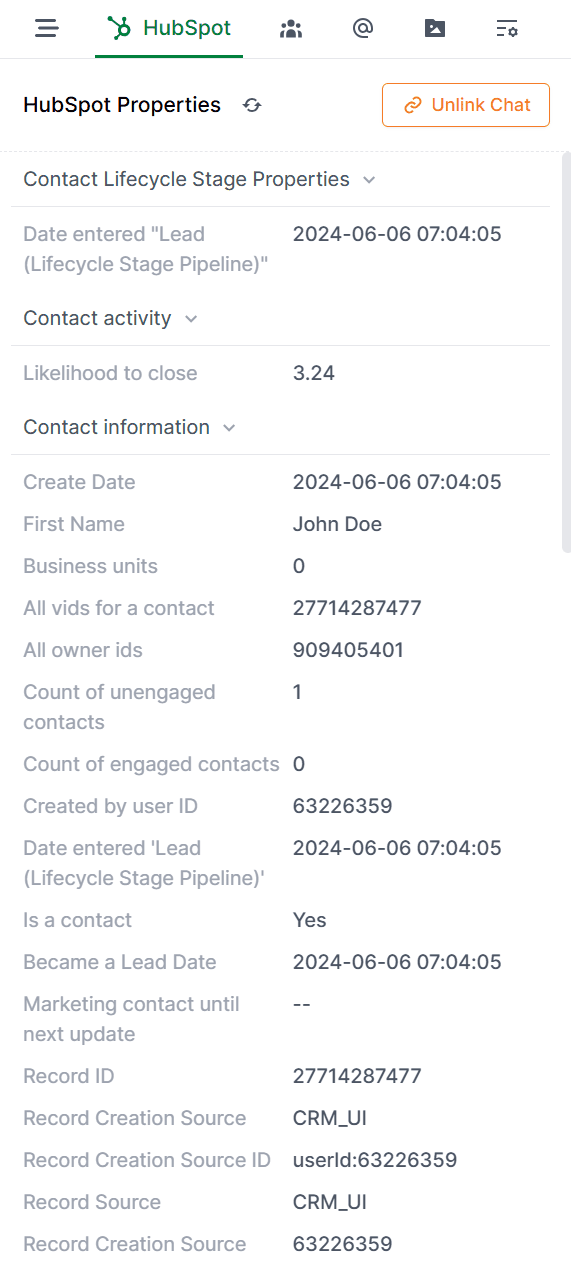
Link chats to contacts and companies: link any Periskope chat to a HubSpot contact or company, from Periskope or from HubSpot, and see its HubSpot properties in the chat side panel. Properties sync automatically, and you can refresh or unlink them manually.
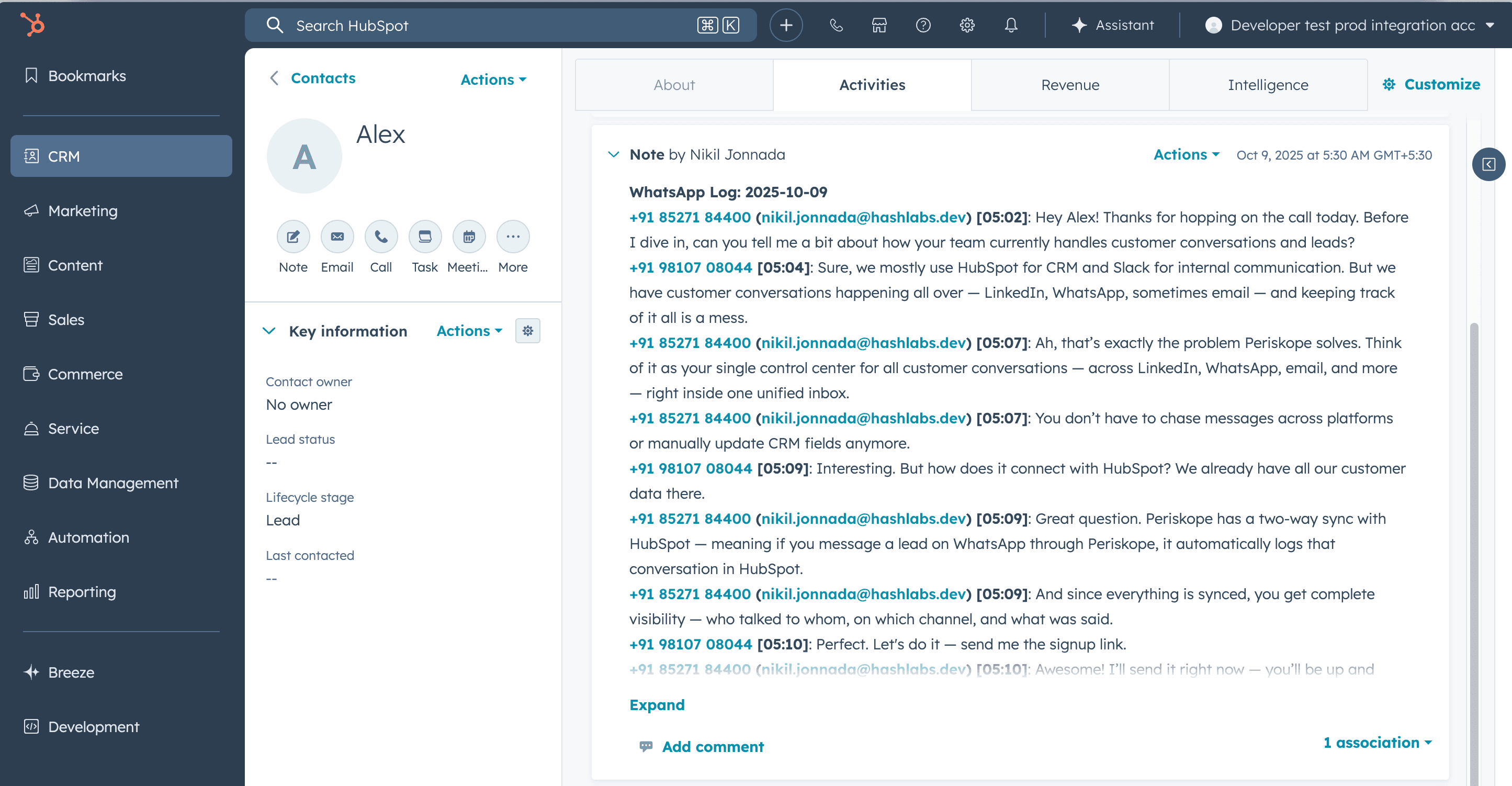
Log WhatsApp messages in HubSpot: turn on automatic WhatsApp chat logging and new messages are logged on the linked contact or company in HubSpot.
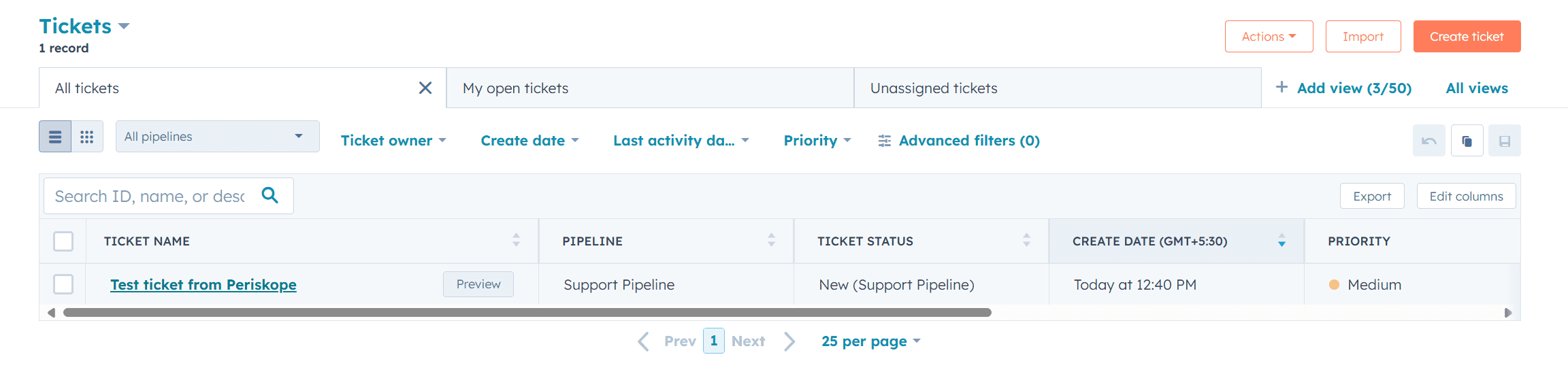
Sync tickets to HubSpot: tickets created in Periskope sync to HubSpot automatically, in the pipeline you choose. Updates to linked tickets sync both ways, and attached messages appear on the HubSpot ticket.
Sync ticket custom properties: create ticket custom properties in Periskope and resync them to HubSpot.
Auto-create contacts and companies: turn on automatic contact/company creation and every new Periskope chat creates a contact or company in HubSpot.
Send WhatsApp messages from HubSpot workflows: add the Periskope Send a message action to contact, company or ticket based workflows to message one or more chats or groups, with optional media.
How to set it up
Log in to Periskope and open HubSpot settings at https://console.periskope.app/settings/integrations/hubspot.
Click Connect. To use Periskope actions in HubSpot workflows, tick the workflow checkbox in the connect modal.
You are redirected to HubSpot. Click Connect App to approve the integration.
Back in Periskope settings, turn on the options you need: automatic WhatsApp chat logging for contacts and companies, and automatic contact/company creation.
Link a chat to a contact or company from the chat side panel in Periskope, or from the contact or company record in HubSpot.
Optional: in HubSpot, create a workflow, add a trigger, then add the Periskope Send a message action and fill in Chat Id(s), Message and Sender Phone.
Use cases
A sales team links each client’s WhatsApp group to the HubSpot company record, so reps see owner and deal properties next to the chat and every new message is logged on the company.
A support team raises a ticket from a WhatsApp message in Periskope. It appears in the chosen HubSpot pipeline, with the attached message, and status changes stay in sync on both sides.
An onboarding workflow in HubSpot sends a welcome message and a PDF to a customer’s WhatsApp group when the company moves to a new lifecycle stage.
Requirements
A HubSpot account
A Periskope account with at least one WhatsApp number connected
To use workflow actions: the workflows scope, selected when you connect
Limitations and notes
Periskope’s HubSpot app is currently under review. You can still connect HubSpot today from Periskope HubSpot settings.
Only new messages are logged to HubSpot from the moment chat logging is turned on. Historical messages are not logged.
Tickets can only be created in Periskope and synced to HubSpot, not the other way round. Details of tickets that are already linked sync both ways.
Ticket custom properties sync one way, from Periskope to HubSpot.
If you create a new pipeline in HubSpot, resync properties to see it in Periskope.
Workflows is currently the only additional scope. To add it after connecting, delete the integration without removing data and reconnect with the scope selected.
The workflow action sends from the sender phone you choose, and only if that number is active on Periskope when the workflow runs.
Frequently asked questions
Why can’t I see Periskope properties in HubSpot?
Periskope properties appear in HubSpot once you link a chat to a contact or company. To show them on the record, customize the properties shown on the contact, company or ticket page in HubSpot.
Can I send WhatsApp messages to groups from HubSpot?
Yes. The Send a message workflow action takes one or more chat IDs separated by semicolons. Group chat IDs end in @g.us and individual chat IDs end in @c.us. You can map them from the Periskope Chat IDs property on contacts and companies, or Periskope Chat ID on tickets.
Will my old WhatsApp messages be logged in HubSpot?
No. Only messages sent or received after you turn on chat logging are logged.
I added team members or new properties in Periskope. How do I update HubSpot?
Click Resync properties in Periskope HubSpot settings.
How do I disconnect HubSpot?
Open Periskope HubSpot settings and click Delete. You can choose to delete with or without data.
Do I need the WhatsApp Business API?
No. Periskope connects regular WhatsApp and WhatsApp Business App numbers by scanning a QR code, the same way you link WhatsApp Web. There are no template approvals or per-message fees.
Full setup guide: https://docs.periskope.app/integrations/hubspot
Automate your WhatsApp with Periskope

Features
Integrations


