
Zoho Desk WhatsApp integration for groups and chats
Raise tickets from WhatsApp chats and groups in Periskope and sync them to Zoho Desk, with Periskope ticket ID, message ID and assignee fields.
Periskope’s Zoho Desk integration syncs tickets you raise on WhatsApp in Periskope to Zoho Desk. When automatic ticket creation is on, every new Periskope ticket creates a Zoho Desk ticket in your default department. You connect it from Periskope settings with your Zoho account.
What you can do
Sync tickets to Zoho Desk: tickets created in Periskope sync to Zoho Desk.
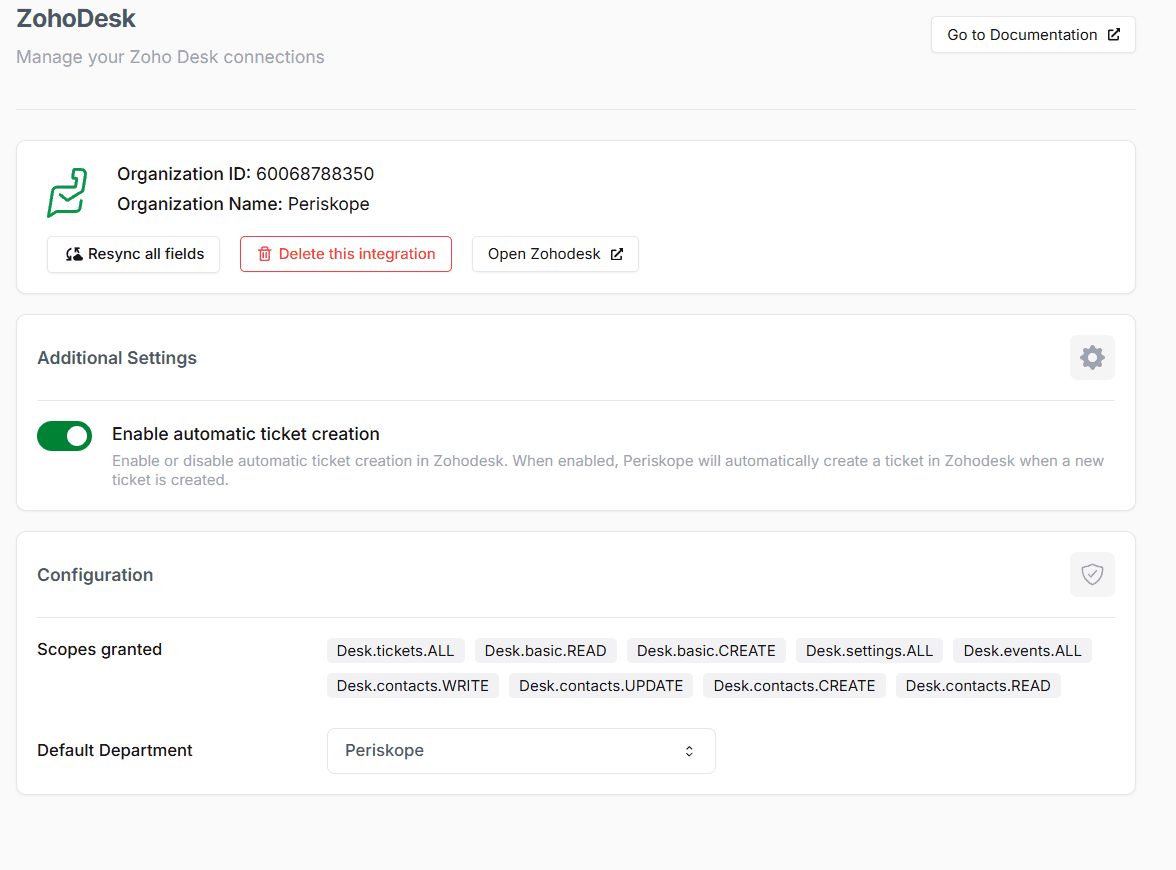
Create Zoho Desk tickets automatically: with Enable automatic ticket creation on, Periskope creates a ticket in Zoho Desk whenever a new ticket is created in Periskope.
Pick a default department: choose which Zoho Desk department receives Periskope tickets.
Show Periskope fields on tickets: add fields such as Periskope Ticket ID, Periskope Message ID and Periskope Assignee to your Zoho Desk ticket layout.
Turn WhatsApp messages into tickets: convert any message in a chat or group into a Periskope ticket with one click or an emoji.

How to set it up
Log in to Periskope and open Zoho Desk settings at https://console.periskope.app/settings/integrations/zohodesk.
Click Connect and confirm in the connect modal.
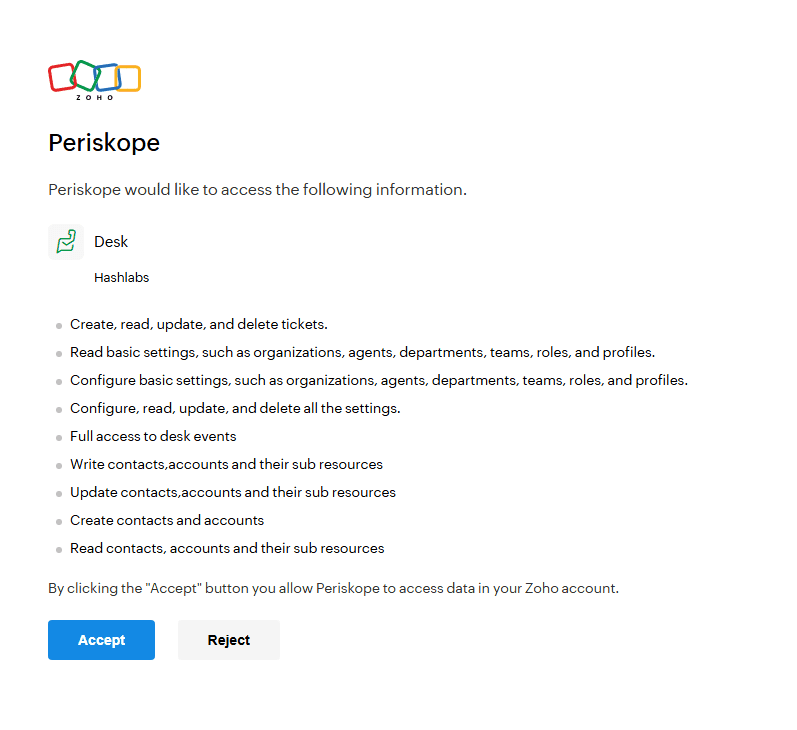
You are redirected to Zoho. Click Connect App to approve the integration.
Back in Periskope settings, check Enable automatic ticket creation and choose your default department.
In Zoho Desk, open Layouts and add the Periskope fields you want to see on tickets.
Use cases
A B2B support team raises tickets from client WhatsApp groups in Periskope and works them in Zoho Desk alongside email tickets.
Agents in Zoho Desk see the Periskope ticket ID and assignee on each ticket, so they can find the original WhatsApp conversation.
A company already on Zoho CRM connects Zoho Desk too, so sales conversations and support tickets from WhatsApp both reach Zoho.
Requirements
A Zoho Desk account
A Periskope account with at least one WhatsApp number connected
Limitations and notes
Periskope’s Zoho Desk app is currently under review. You can still connect Zoho Desk today from Periskope Zoho Desk settings.
Periskope fields are not visible in Zoho Desk at first. Add them to your ticket layout from the Layouts page.
The integration syncs tickets from Periskope to Zoho Desk. Create tickets in Periskope for them to sync.
Frequently asked questions
Why can’t I see Periskope fields in Zoho Desk?
They are hidden by default. Open Layouts in Zoho Desk and add the Periskope fields you want on the ticket page.
Which department do Periskope tickets go to?
The default department you select in Periskope Zoho Desk settings.
Can I create tickets from WhatsApp group messages?
Yes. Turn any message in a 1:1 chat or group into a Periskope ticket and it syncs to Zoho Desk.
How do I disconnect Zoho Desk?
Open Periskope Zoho Desk settings and click Delete. You can choose to delete with or without data.
Do I need the WhatsApp Business API?
No. Periskope connects regular WhatsApp and WhatsApp Business App numbers by scanning a QR code, the same way you link WhatsApp Web. There are no template approvals or per-message fees.
Full setup guide: https://docs.periskope.app/integrations/zohodesk
Automate your WhatsApp with Periskope

Features
Integrations


