
Autoresponder for WhatsApp: A Guide to Choosing and Setting Up a Solution
Discover how to implement an autoresponder for whatsapp, define triggers, and automate messages to boost response times and customer satisfaction.
Jan 27, 2026
This guide is for operations, support, and sales teams evaluating tools to manage customer conversations on WhatsApp. It will help you decide if an autoresponder is the right solution for your volume and, if so, provide a practical setup guide.
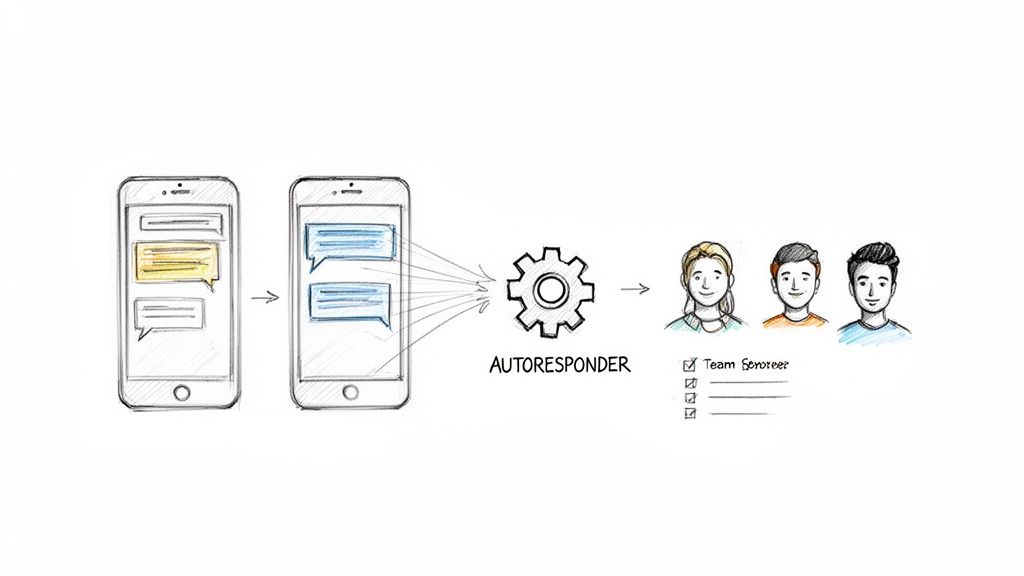
An autoresponder for WhatsApp is a tool that sends pre-written replies to incoming messages automatically. It acts as a digital front desk, ensuring every customer gets an instant acknowledgment, understands when to expect a human response, and gets routed to the correct team member. This is critical for managing messages across multiple WhatsApp numbers without manual overhead.
Is a WhatsApp Autoresponder Right for Your Team?
An autoresponder is more than an "out of office" message. It’s a tool for managing high chat volume, improving response times, and standardizing communication. It's not a fit for every situation. This section helps you determine if it solves your team's specific pain points.
Who it’s for:
High-Volume Teams: If your inbox is constantly full and you struggle to send the first reply in a timely manner.
Teams Needing 24/7 Coverage: If you need to acknowledge customer messages and set expectations outside of standard business hours.
Sales & Support Teams: If you spend significant time answering the same initial questions or qualifying leads before routing them.
Growing Businesses: If your chat volume is increasing and you need a scalable way to maintain customer experience without hiring more agents.
Who it's not for:
Low-Volume Teams: If you handle a small, manageable number of chats where immediate, personal responses are always feasible.
Highly Consultative Sales: If your sales process requires a deep, human-led conversation from the very first interaction.
Teams with 24/7 Staffing: If you already have agents available around the clock to provide instant, live responses.
When to Use an Autoresponder vs. Manual Replies
A well-configured autoresponder empowers human agents by filtering, sorting, and acknowledging incoming chats, allowing them to focus on high-value conversations.
Situation | When to Use an Autoresponder | When to Use Manual Responses |
|---|---|---|
High Message Volume | Your team receives dozens or hundreds of messages daily and struggles with initial replies. | Your team handles a low, manageable number of chats where personal responses are feasible. |
After-Hours Support | You need to acknowledge messages and set reply expectations when your team is offline. | Your business operates 24/7 with staffed agents, or your customers are only in one time zone. |
Lead Qualification | You want to ask initial qualifying questions to new leads before assigning them to a sales rep. | Your sales process is highly consultative and requires a human connection from the first touchpoint. |
Support Ticket Creation | Your goal is to instantly log support requests and provide customers with a ticket number. | You have a very low volume of support requests that do not require a formal ticketing system. |
If your goal is to scale operations without degrading the customer experience, an autoresponder for WhatsApp is a practical tool for bringing order and efficiency to your communication workflow.
Defining Your Autoresponder Strategy and Use Cases
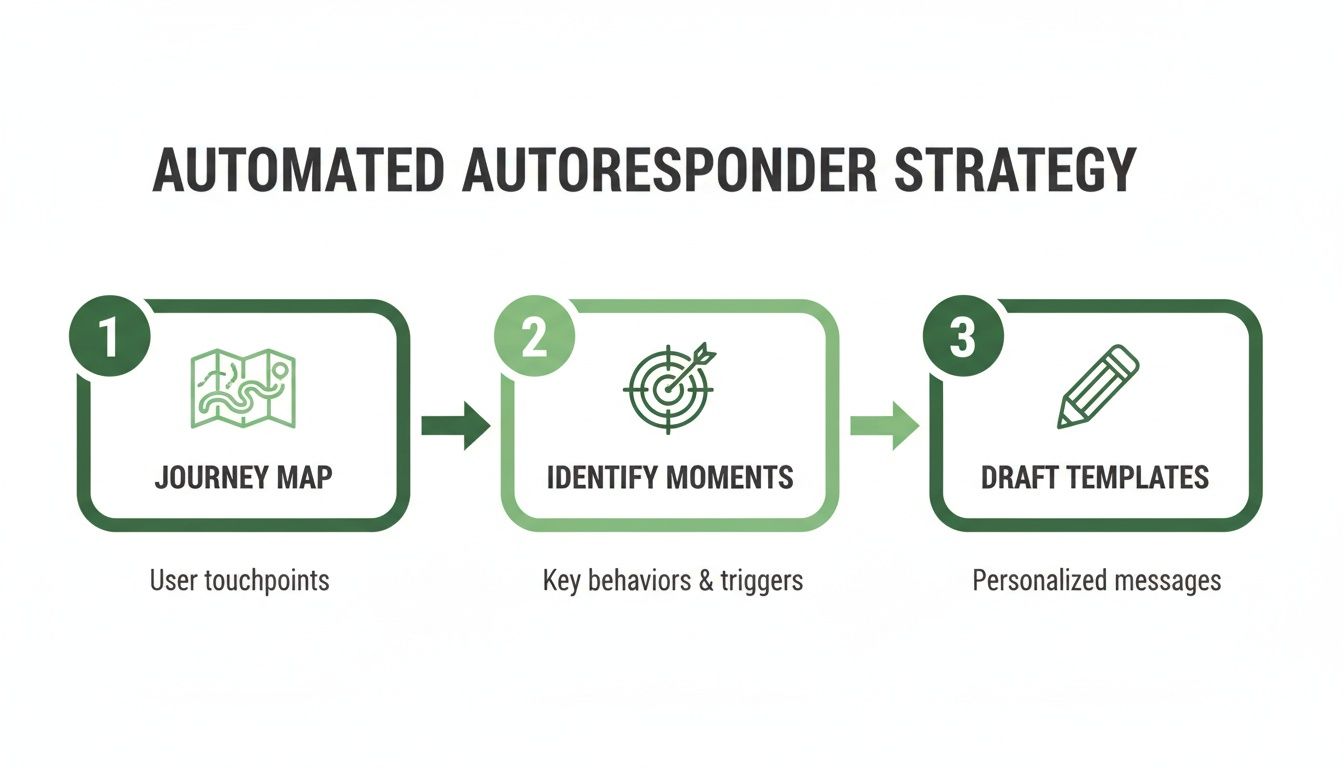
An autoresponder for WhatsApp without a clear strategy creates confusion. Before configuring software, map your customer's journey on WhatsApp to identify the key moments where an automated response adds value. The objective is to build a system that helps customers and your team, not a robotic notifier.
1. Map Your Customer Journey on WhatsApp
Visualize the paths different customers take. A new sales lead has different needs than an existing customer with a technical issue.
Sales Inquiry Journey:
Initial Contact: A prospect asks about pricing.
Qualification: The autoresponder asks a qualifying question (e.g., "Are you an existing customer?").
Information Delivery: It provides a link to the pricing page.
Agent Handoff: The conversation is assigned to a sales agent for follow-up.
Support Request Journey:
Initial Contact: An existing customer reports an issue.
Ticket Creation: The autoresponder logs the request and provides a ticket number.
Information Gathering: It asks for necessary details (e.g., "What is your account email?").
Agent Handoff: The ticket is routed to the support queue.
2. Identify Key Moments for Automation
With journeys mapped, pinpoint repetitive tasks or moments where customers are left waiting for basic information.
After-Hours Support: Instantly acknowledge messages received outside business hours and state when a human will reply.
Instant Lead Qualification: When a new number messages, ask one or two qualifying questions to route them correctly.
Automated Follow-ups: For unresolved inquiries, set a timed auto-reply to nudge the customer or the assigned agent.
Frequently Asked Questions: Trigger automated answers for keywords like "hours," "location," or "return policy."
3. Draft Specific and Contextual Message Templates
Create message templates tailored to each scenario. A good auto-reply acknowledges the user's need, provides relevant information, and sets a precise expectation for the next human interaction.
For a New Lead: "Thanks for reaching out! A member of our sales team will be with you within 15 minutes. In the meantime, you can see our pricing plans here: [link]."
For a Support Issue: "We've received your support request and a ticket has been created. To help us resolve this faster, could you please reply with your account email? An agent will review your case within the hour."
For an After-Hours Inquiry: "Hello! Thanks for your message. Our team is available from 9 AM to 5 PM EST, Monday to Friday. We'll get back to you first thing tomorrow morning."
This planning ensures your automation is a helpful asset from day one. With over 3.14 billion people expected on WhatsApp by 2026 and business messages seeing 98% open rates, well-crafted automated messages are guaranteed to be seen. Using an autoresponder for WhatsApp via platforms like Periskope can improve response times by 82% and increase lead follow-ups by 66%.
Configuring Triggers and Message Templates in Periskope
With a strategy in place, the next step is implementation.
The first step is signing up to a WhatsApp automation platform like Periskope, followed by setting up core triggers for auto responses.
Setting Up Core Triggers
Triggers are the "if-then" logic that initiates your automations. When an incoming message meets a defined condition, the trigger fires and executes an action.
Keyword Triggers: Activates when a message contains a specific word like "pricing," "support," or "demo."
Pro: Simple and effective for common queries.
Con: Can be triggered accidentally if the keyword is too broad.
Time-Based Triggers: Fires if a message arrives outside of your team’s working hours.
Pro: Excellent for managing after-hours expectations.
Con: Requires clear definition of business hours and holidays.
Contact Property Triggers: Sets rules based on who is messaging (e.g., new vs. existing customer).
Pro: Allows for highly personalized and contextual automation.
Con: Requires customer data to be tagged or available in a connected CRM.
Example Rule: IF a message from an unknown number contains "pricing," THEN send the "Pricing Info" template and assign the chat to the "Sales Team" inbox.
For technical details on connecting to the WhatsApp platform, refer to their official WhatsApp integration documentation.
Building a Library of Message Templates
Message templates are the pre-written responses sent by your triggers. A library of templates ensures consistency and saves your team from repetitive typing. Use dynamic placeholders to personalize messages.
Essential Placeholders to Use:
[Customer Name]: For basic personalization.
[Agent Name]: Lets the customer know who will be helping them (e.g., "I've assigned your chat to [Agent Name]").
[Ticket ID]: Provides a concrete reference number for support issues.
[Date/Time]: Useful for setting expectations (e.g., "Our team will be back at [Date/Time]").
A good template is personal, valuable, and sets clear expectations for what happens next. Combining sharp triggers with thoughtful templates turns your shared inbox into a powerful automation engine. For common follow-up questions, you can also setup quick replies on WhatsApp to create an efficient workflow that blends automation with manual responses.
Integrating Your Autoresponder with CRMs and Helpdesks
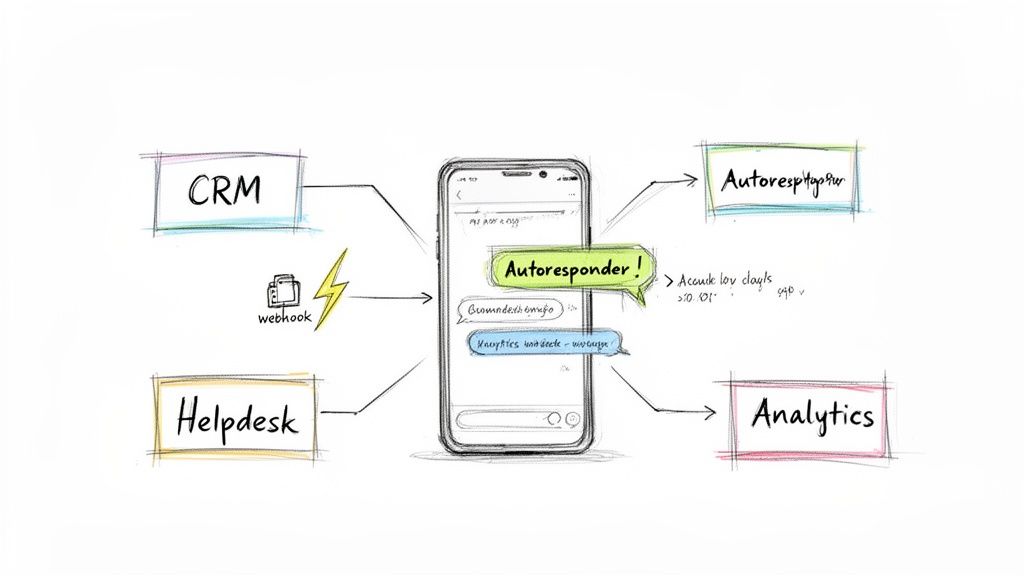
A standalone autoresponder for WhatsApp is useful, but its true value is realized when integrated with your other business tools like a CRM or helpdesk. An automated reply that also creates a ticket in Freshdesk or a new deal in HubSpot eliminates manual data entry and prevents leads from falling through the cracks.
Why Integration is Not Optional
Without integration, WhatsApp conversations exist in a silo. A support interaction on WhatsApp is invisible to a sales rep viewing the CRM. This creates a disjointed customer experience. Connecting your tools creates a single source of truth, giving every team member full context on customer interactions. To understand the benefits, it helps to know what CRM integration entails.
How to Automate Data Flow with Webhooks
Webhooks are automated messengers that connect different applications. When an event occurs in one app (e.g., a new WhatsApp message), a webhook sends that data to another app (e.g., your CRM).
Common Integration Workflows:
New Lead to CRM: A message from an unknown number automatically creates a new contact or lead in HubSpot or Zoho.
Support Ticket Creation: A message containing "help" or "issue" creates a new ticket in Freshdesk or Zendesk, attaching the original message.
Deal Stage Updates: Certain keywords or actions in a WhatsApp chat can update a deal stage in your sales CRM.
An integrated autoresponder orchestrates actions across your tech stack, becoming the central hub for customer communication data.
Practical Setup Example: HubSpot and Periskope
Here is a typical workflow for connecting Periskope to HubSpot to create a contact and a deal from a new WhatsApp inquiry. For a complete guide, see how to connect WhatsApp to HubSpot.
The process in brief:
Generate a Webhook URL in HubSpot: Create an endpoint in your HubSpot workflow builder to receive data from Periskope.
Configure the Trigger in Periskope: Set up a rule, such as "When a new conversation is started by an unknown number."
Set the Action: The action for the trigger will be "Send data to webhook." Paste the HubSpot URL here.
Map the Data Fields: Match data from WhatsApp (e.g., sender's name, phone number) to the correct fields in HubSpot (e.g., "First Name," "Phone Number").
Once configured, this workflow runs automatically in the background, turning your autoresponder for WhatsApp into an integrated part of your sales and support engine.
Monitoring Performance and Optimizing Your Automation
An autoresponder for WhatsApp is not a "set it and forget it" tool. Its value is unlocked through continuous monitoring and optimization based on performance data. Your initial setup is a baseline; real efficiency gains come from refining the system over time.
Key Performance Indicators to Track
Your Periskope analytics dashboard provides the data needed to make informed decisions. Focus on these core metrics to understand what's working and identify friction points.
First Response Time: The goal is to drive this as close to zero as possible for new inquiries, confirming every customer receives an instant acknowledgment.
Resolution Rate: Track how many conversations are fully resolved by automation versus how many require human intervention. A high rate for common questions indicates success.
Conversation Volume Per Agent: As the autoresponder handles more initial interactions, the number of chats requiring an agent's attention should decrease.
Escalation Rate: Monitor how often an automated chat is handed over to a human agent. A high escalation rate on a specific auto-reply suggests the template is unclear or unhelpful.
Turning Data into Actionable Insights
Look for patterns in your metrics. For example, if your after-hours auto-reply consistently receives follow-up messages like "Is anyone there?" your message is creating anxiety instead of providing reassurance. The template needs to be more specific about when the team will be back online.
Another common issue is a keyword trigger that is too broad. If a "billing" auto-reply is triggered by messages that only mention the word in passing, it frustrates customers with irrelevant information. Reviewing conversation transcripts tied to that trigger will expose the mismatch. Your analytics dashboard is a roadmap for specific, actionable improvements.
According to these WhatsApp automation findings, automating initial interactions can reduce customer drop-offs by 40-60%. Periskope helps teams track these metrics, leading to 82% faster responses and saving over 5 hours per agent each week.
A Simple Framework for A/B Testing Message Templates
A/B testing is a practical way to resolve issues identified in your data. It involves creating two versions of a message to see which performs better.
Define the Problem: Form a hypothesis based on data. Example: "Our after-hours message is confusing because it doesn't give a specific return time."
Create a Variation (Version B): Write a new message that solves the problem.
Version A: "We're currently away."
Version B: "Our team is offline for the day. We’ll be back to answer you first thing at 9 AM EST."
Measure the Results: Run both versions and compare the escalation rates or number of confused follow-up messages for each.
Implement the Winner: If Version B results in lower escalation and fewer follow-ups, make it the new default.
This iterative cycle of monitoring, interpreting, and testing transforms a static ruleset into an intelligent, adaptive system.
Your Top Questions About WhatsApp Autoresponders, Answered
Here are answers to the most common questions from teams setting up a WhatsApp autoresponder for the first time.
Do I Need the WhatsApp Business API for an Autoresponder?
No, not always. The official API is powerful for large enterprises but often involves a complex approval process and unpredictable usage fees.
Platforms like Periskope offer an alternative by linking directly to the standard and Business WhatsApp accounts on your team's phones. This allows you to set up an autoresponder and shared inbox in minutes without the technical overhead of the API.
Choose the API if: You are a large enterprise with developer resources and need programmatic messaging at scale.
Choose a non-API solution if: You need to get set up quickly, manage multiple existing phone numbers, and want shared inbox features without API costs and complexity.
How Can I Make My Auto-Replies Sound Less Robotic?
Use personalization and set clear expectations.
Use Dynamic Placeholders: Include the customer's name to make the message feel personal.
Create Contextual Templates: Acknowledge why the user is reaching out with different messages for sales, support, and after-hours inquiries.
Provide a Specific Next Step: Avoid vague promises like "We'll get back to you." Instead, be concrete: "Our support team has your message and will reply within 2 business hours. Your ticket reference is [Ticket ID]." This turns a generic confirmation into a reassuring update.
What Are the Most Common Setup Mistakes to Avoid?
Automating Everything: Use autoresponders for first contact, qualification, and routing. Reserve complex problem-solving for human agents.
Setting and Forgetting: An autoresponder requires ongoing monitoring and optimization. Regularly review performance and tweak messages based on customer interactions.
Sending Vague Messages: An auto-reply that doesn’t set a clear expectation for a human response is often worse than no reply at all.
Not Integrating With Other Tools: A siloed autoresponder creates manual data entry and a disconnected customer view. Connect it to your CRM and helpdesk to centralize data.
Can I Set Up Different Autoresponders for Different Numbers?
Yes. A multi-number shared inbox like Periskope is designed for this. It allows you to create unique sets of rules, triggers, and message templates for each phone number, all managed from a central platform.
Sales Number: Can use auto-replies focused on lead qualification and routing chats to the sales team.
Support Number: Can use an autoresponder to create support tickets, provide reference numbers, and set response time expectations for technical issues.
Operations Number: Can use auto-replies based on keywords like project codes to route inquiries to the correct field manager.
By separating workflows, you ensure every message receives the most relevant automated response.
An effective autoresponder for WhatsApp turns a chaotic inbox into a streamlined workflow. If you're ready to implement a solution that offers a multi-agent shared inbox, powerful automation, and deep integrations without requiring the WhatsApp Business API, Periskope can be set up in minutes. Get started in 5 minutes.
Automate your WhatsApp with Periskope

Features
Integrations


